How to set OTP token as the default sign-in method for Office 365 MFA login
Login to Microsoft My Sign-ins Portal, select "Security Info"
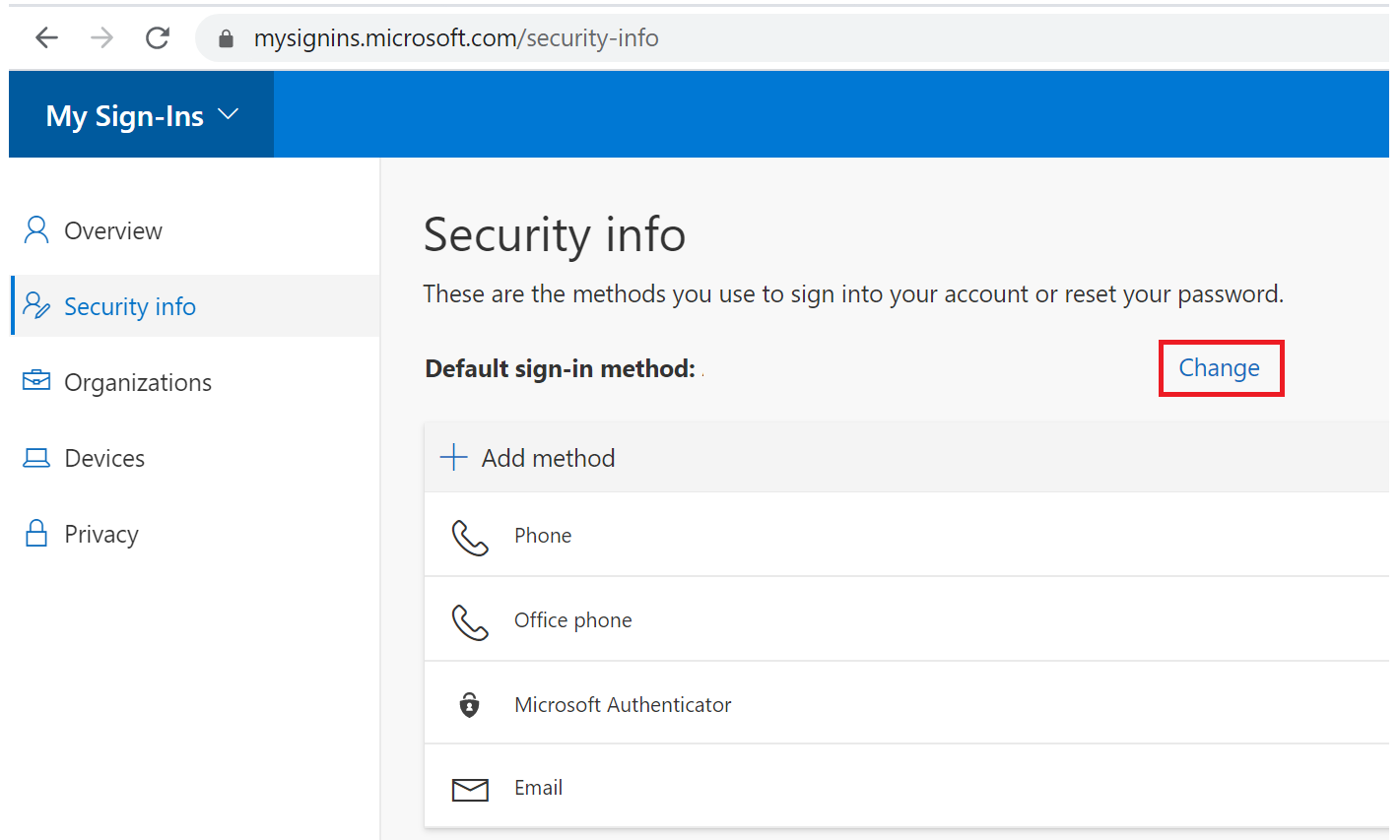
Click "Change" to the right of "Default sign-in method"
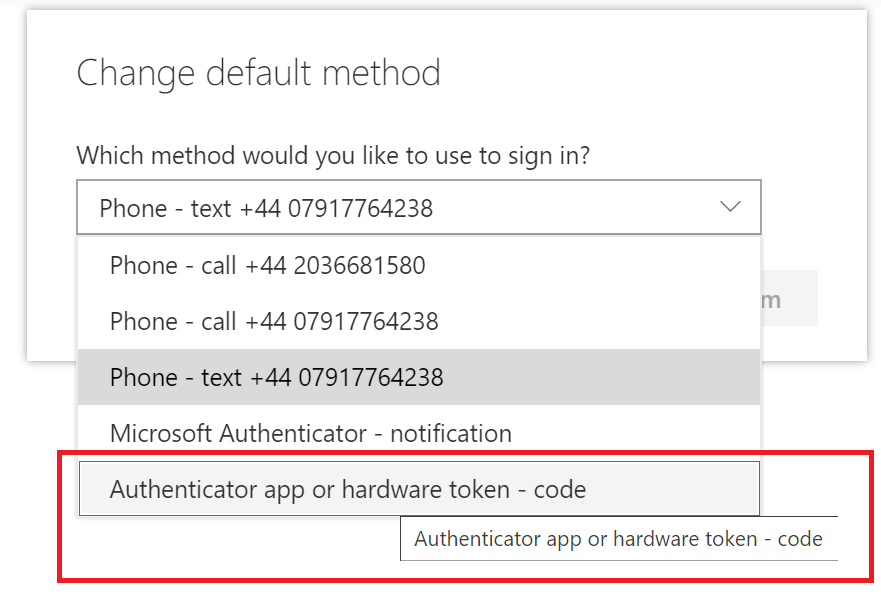
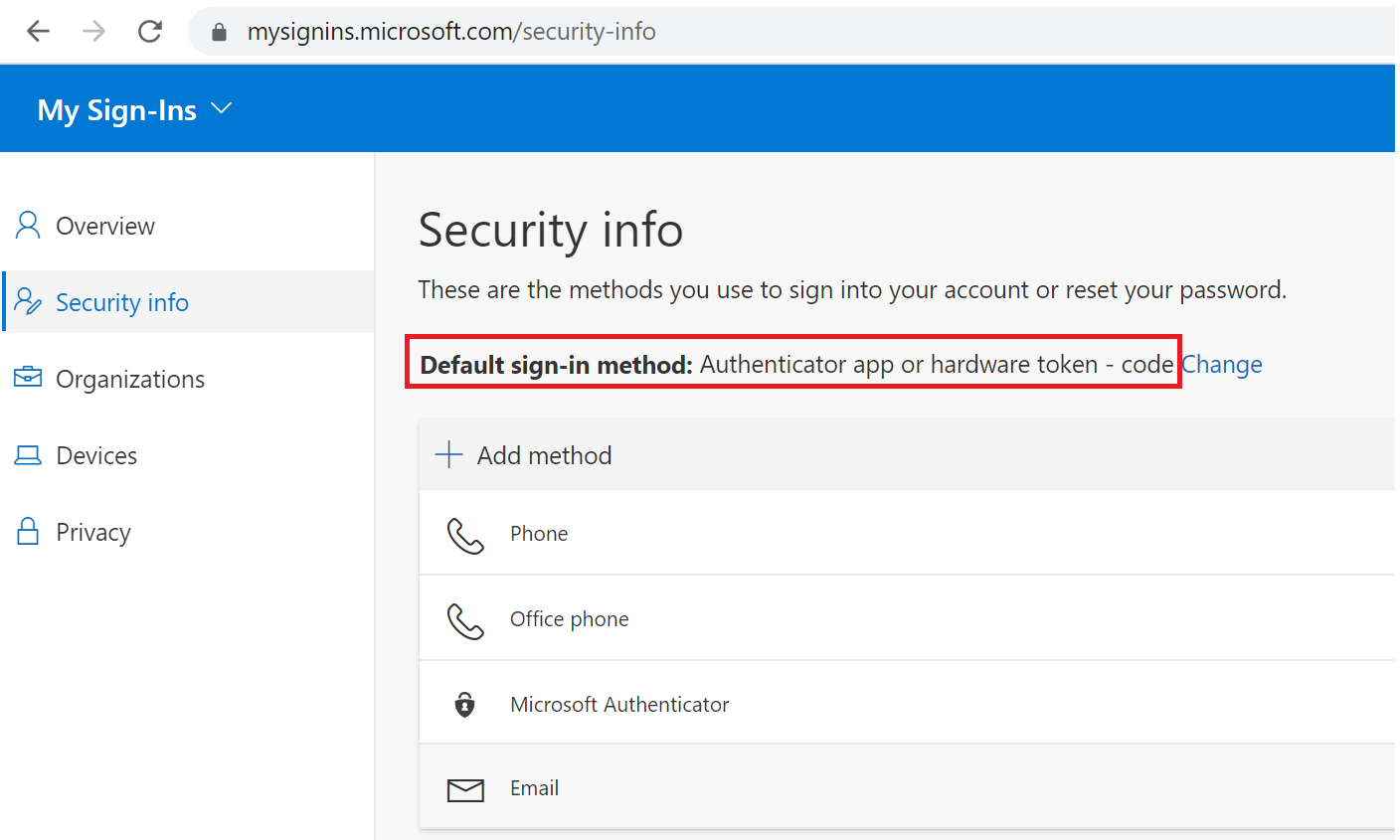
Select "Authenticator app or hardware token - code"
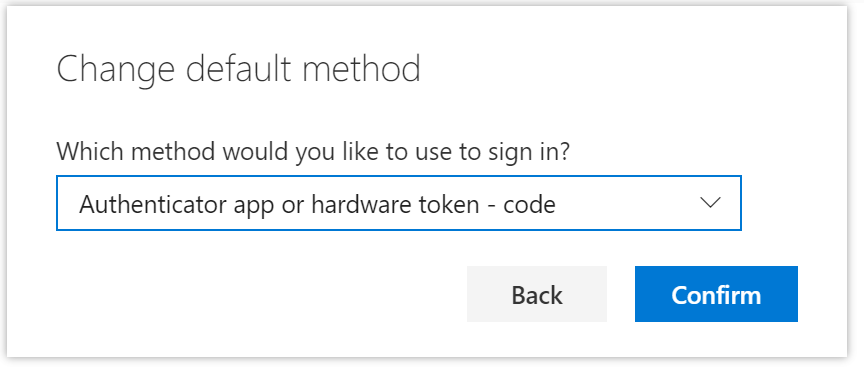
Click "Confirm"
Related Articles
Password Prompts after Changing Password
Office Applications Prompting for Password If you change your MS365 password and MS Office prompts for your password and will not accept go thru the following steps. Click “File” Click “Account” Select “Sign Out” Select “Yes” at the pop-up window. ...Paycor SSO Sign-In
Paycor SSO Log In Paycor is configured to only accept SSO sign-ins after the initial account setup. Switch the email address from their personal to an ACS email. Have the user sign in with their old username and password, the system will prompt them ...Installing Microsoft Office and Other Licensed Microsoft Applications
If not already installed, all Microsoft Office applications that you are licensed for can be found and installed via the Microsoft Office 365 portal: https://login.microsoftonline.com/ If you choose “Other install options”, you will see a screen ...Paycor SSO Sign In Loop - Clear Your Browser Data/Cookies
A Paycor SSO Sign loop can happen if a user uses multiple Microsoft accounts on the same browser. To correct the issue, you are advised to use separate browsers for each account and clear your browser data to remove duplicate Microsoft cookies/data. ...Microsoft Teams
At ACS, our primary collaboration tool is still Slack. However, with the increasing usage of Microsoft Teams by our customers, we are in the very early stages of using our own Microsoft Teams environment, "kicking the tires" as we consider embracing ...